Switching restic backup from NFS to SFTP
For over a year, I've been using restic to back up my home lab server to a repository on a Synology NAS mounted locally using NFS. All this time, it worked for me without any issues whatsoever. Only when I configured the repository the same way on my new Linux-based home computer, I noticed that something was off.
The problem was that I could only access the repository with root privileges. That was a given on my home lab server where the backups where always created by a scheduled script running in root context. On my home computer, I want to interact with the restic repository as myself without having to elevate privileges.
As I investigated further, I noticed that the files created in the repository were owned by an unknown user, i.e., a user with UID 1000 which didn't even exist on Synology. It turned out that it was the UID of my home lab server user. I haven't encountered any issues before only because the NFS mount was always used as root on my home server and therefore permissions hadn't been checked.
I started playing around with NFS security settings on Synology but I couldn't find a way to interact with the repository as my Synology user. As stated in the Synology documentation:
If AUTH_SYS security flavor is implemented: The client must have exactly the same numerical UID (user identifier) and GID (group identifier) on the NFS client and Synology NAS, or else the client will be assigned the permissions of others when accessing the shared folder. To avoid any permissions conflicts, you can select Map all users to admin from Squash or give "Everyone" permissions to the shared folder.
Of course, the user and group identifiers weren't the same across Synology, my home lab server and my home computer. And I had no interest in trying to make them the same. The available squash options in Synology UI were also rather limited: map root to admin/guest or map all users to admin/guest. As such, they didn't give me an option to map the NFS user to my Synology user without manually tinkering with the etc/exports file which I also didn't want to do.
I took a step back and looked at other ways to access the repository on my Synology NAS. I liked SFTP best because:
- It's built into both Synology and restic.
- I already used SSH to access Synology remotely.
The process of switching from NFS to SFTP was very straightforward.
First, I enabled SFTP access on my Synology. This required two configuration changes in the Control Panel.
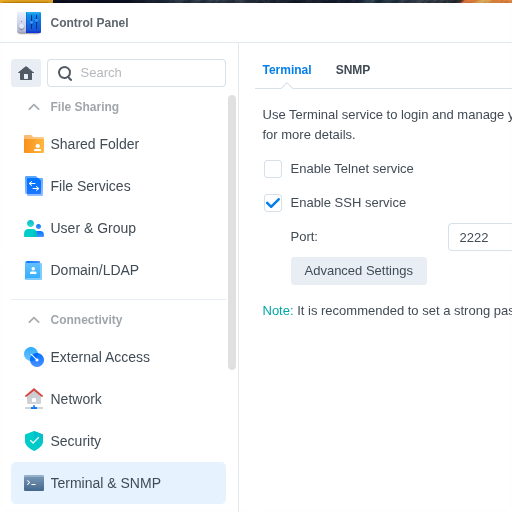
- Enable SSH service in Terminal & SNMP > Terminal. Optionally change the Port as well. I had this one enabled already.
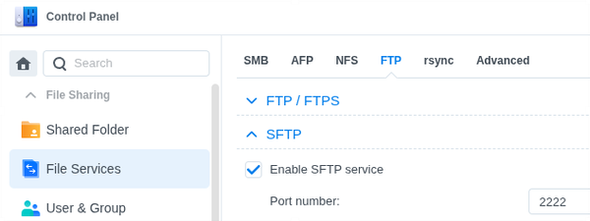
- Enable SFTP service in File Services > FTP > SFTP.
With Synology configured correctly, I was ready to configure the client. Since I already used SSH, I could skip some of the following steps, but I'm listing them all anyway:
- I added an entry for my Synology to
~/.ssh/configso that I didn't have to specify all the details every time I wanted to connect to it:Host synology HostName synology Port 2222 User damir - I created an SSH key so that I didn't have to enter the password every time:
ssh-keygen -t ed25519 -C "me@mycomputer" - I added the key to the authorized keys on Synology. This was the only time I had to enter my Synology password to connect to it. I didn't have to specify the username and port thanks to the
~/.ssh/configentry above.ssh-copy-id -i ~/.ssh/id_ed25519.pub synology - I changed my
RESTIC_REPOSITORYtosftp:synology:/restic(again no username or port needed thanks to my SSH configuration).
I followed the same steps on my home server with minor modifications because I had to do it for the root user:
- Add the SSH configuration entry to
/root/.ssh/config. - Run all commands with
sudo. - Set no passphrase for the SSH key so that it can be used from the backup script non-interactively.
Since the ownership and permissions of existing files in the restic repository were in complete disarray, I had to fix those, too:
sudo chown -R damir:users /volume1/restic/
sudo chmod -R a-rwx,u+rwX,g+rwX /volume1/restic/
This was enough to get everything working. The backup created files as my Synology user (the one I used for SSH login). And I could access the restic repository from my home computer without root privileges.
As the final step, I got rid of everything NFS related because I didn't need it anymore:
- I unmounted the NFS share and deleted the mount directory on the client:
sudo umount /mnt/restic sudo rm -rf /mnt/restic - Also on the client, I removed the entry for this mount from
etc/fstab/. - I deleted the NFS Permissions entry for the
resticShared Folder in Synology Control Panel.
Although at first NFS seemed the simplest option for accessing the restic repository on my Synology NAS, SFTP turned out a much better choice in the end. It only took me a year to realize that.
