Secure scripts with secrets in Windows
My restic backup script on Windows relied on having the restic password stored in an environment variable, making it and the restic command accessible to any process running with my credentials. Before including more sensitive information in my backup, I wanted to make it more secure. I ended up moving the credentials to a file that's only accessible with elevated privileges.
To impact the existing script as little as possible and keep the restic calls convenient without having to specify the password for every call, the above-mentioned newly created file is just another PowerShell script which sets the environment variable with the restic password:
$env:RESTIC_PASSWORD = 'my_restic_password'
To make the file only accessible with elevated privileges, I had to restrict its access to the Administrators (and SYSTEM) group. This can be achieved by following these steps:
- Open file Properties, navigate to Security tab and click Advanced.
- Click Disable inheritance and choose Convert inherited permissions into explicit permissions on this object in the next dialog.
- Remove current user from permission entries.
- Change owner to
Administratorsgroup.
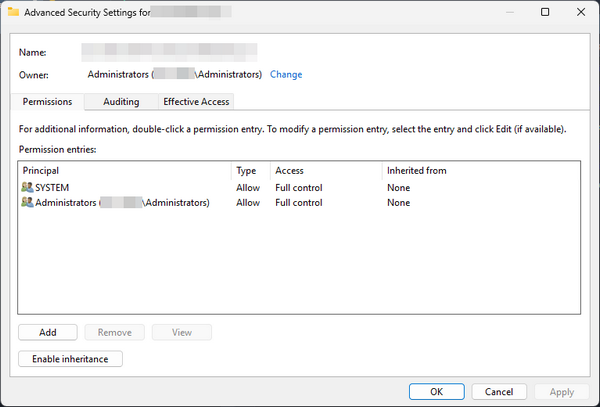
After applying this configuration, you'll have to run your text editor as administrator if you want to make any further changes to the script.
To make the environment variable with the password available when running the backup script, I added the following call at the very beginning of it to invoke my new secure script containing the credentials:
. ./MySetEnvScript.ps1
Of course, this call will only succeed when the calling script is running with elevated privileges. Since my backup script is invoked from the Task Scheduler, I had to check Run with highest privileges on the General tab of the Properties window for the scheduled task to elevate its run-time privileges:
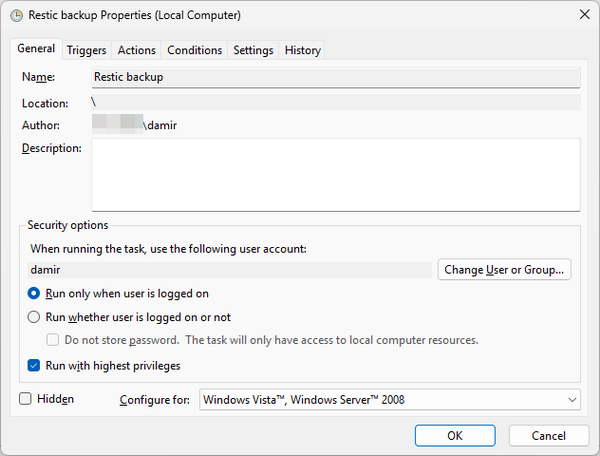
Doing this had the unfortunate side effect of making the mapped network drive with my restic repository inaccessible. To resolve the issue I had to map the drive in my new secure script which meant adding another password to it:
net use R: "\\server\share" "mySharePassword" /user:myShareUser

$env:RESTIC_PASSWORD = 'my_restic_password'
$env:RESTIC_REPOSITORY = "R:\"
With this change, the backup script worked again.
Of course, I couldn't make any restic calls from the command line anymore without entering the password every time. This was the end goal of the whole endeavor after all. Since this makes using restic really inconvenient, I now usually do that from an elevated terminal window. From it, I first invoke my secure script with the password the same way as from the backup script. From that point on, I can again use restic without having to manually enter the password. And once I'm done, I close the terminal window to avoid accidentally running any other commands in it.
